Note: This guide is outdated as of August 2026, as our new game server control panel configures the port settings automatically!
After ordering a Rust game server from us, you'll need to make a few changes before getting connected. Rust requires three ports to work, these include the game port (which we assign automatically), a query port, an RCON port, and optionally an app port to use the Rust+ companion app.
Once you get your server, login to our game control panel to get started!
Once the server installs (which is automatically started after you order), it should not start automatically. If it does start then make sure you stop it to make these important changes.
Navigate to your Rust server, then go to the Network page in the sidebar. On the Network page you can create port allocations which will assign ports to your server. You'll need to allocate three extra ports for the purposes mentioned above.
(Click image to view full size)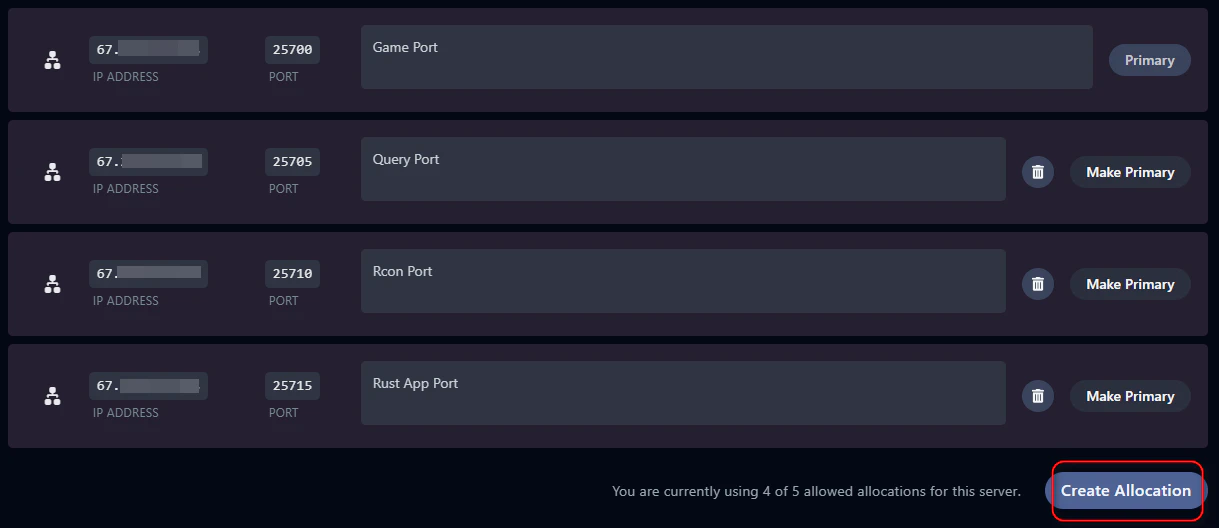
Once you allocate three extra ports (four total including the default game server port), navigate to the Startup page in the left sidebar. The Startup page is used to modify startup options for the Rust server, and where we can enter the custom ports for query, RCON, and the Rust+ companion app port.
(Click image to view full size)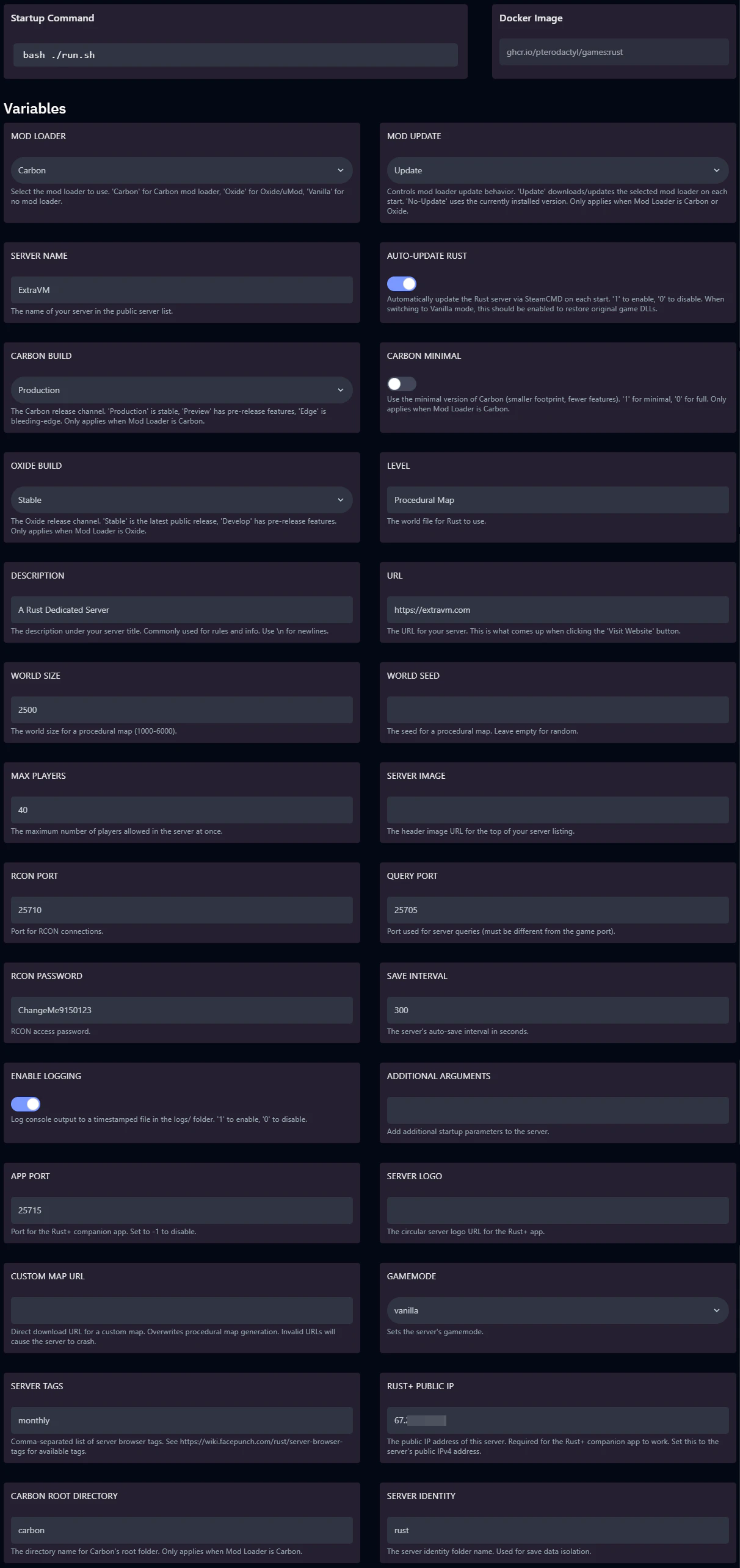
Specifically you'll want to set the following fields:
- "MOD LOADER" - Default to Carbon mod loader, you can change to Vanilla or Oxide to use Rust Vanilla or Rust with Oxide mod loader.
- "SERVER NAME" - Set the name of your Rust server.
- "DESCRIPTION" - Set the description of your Rust server.
- "URL" - Set the website URL of your Rust server community, or remove the default.
- "WORLD SIZE" - Default of 2500, lower to reduce RAM usage, or increase world size which can increase RAM usage.
- "RCON PORT" - (Important) Set the port to use for RCON. Make sure the port is allocated already on the Network page.
- "QUERY PORT" - (Important) Set the port to use for Steam query. Make sure the port is allocated already on the Network page.
- "APP PORT" - (Important) Set the port to use for the Rust+ companion app to work. Make sure the port is allocated already on the Network page.
- "RCON PASSWORD" - (Important) Set a custom password to access RCON remotely.
- "RUST+ PUBLIC IP" - (Important) Set the public IP address for the Rust+ companion app to work. This is the IP address of your game server on the main server page, without the port after it.
After making those changes you can start your Rust server. The startup process can take around 2 minutes to complete.